Video Playback Calculator
Retime a clip to fit, and find out whether a loop actually loops.
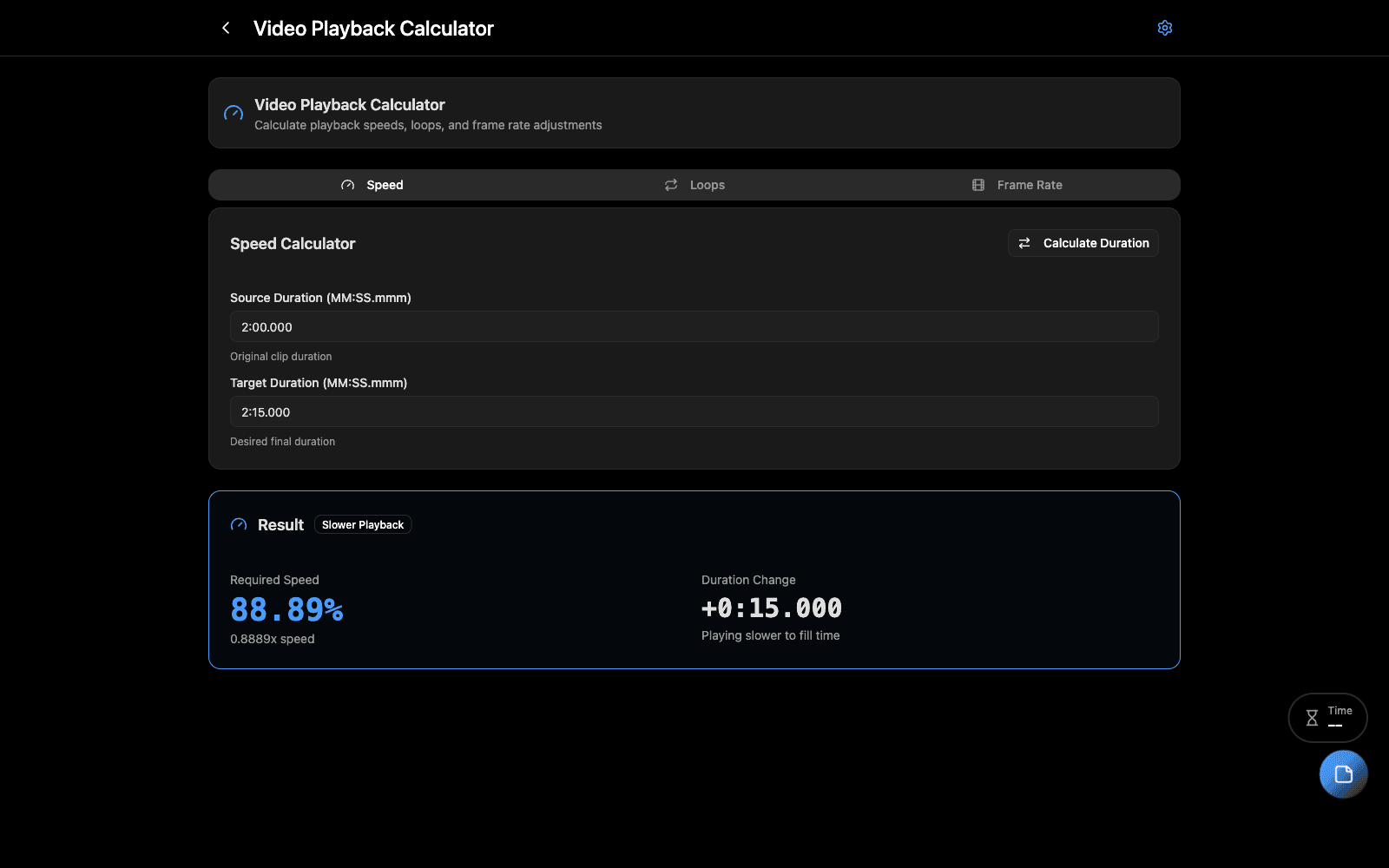
Overview
Two jobs that come up constantly and are easy to get slightly wrong.
Retiming — a clip is 40 seconds and the moment is 35. What playback speed gets you there, and what frame rate does that imply?
Loop analysis — content is 12 seconds, the song section is 41. That is three full loops and a partial, and the partial is what the audience notices.
When to Use
- Fitting existing content to a cue of a fixed length
- Checking a loop against a musical section before committing to it
- Working out the frame rate a retime implies for a render
Step-by-Step
Retiming
- Enter the original frame rate and the playback speed as a percentage, or the duration you need.
- Read the new duration, the frame count and the effect on playback.
Loops
- Enter the clip length and the section length you are filling.
- Read the full loops and whether a partial loop is left over.
Tips & Shortcuts
A partial loop is visible. If the analysis shows one, either retime the clip so the loops come out whole, or cut the section to a multiple.
Speed changes are not free. Slowing footage below about 90% shows judder unless the render interpolates. The calculator tells you the timing, not whether it will look acceptable.
Related Tools
- Frame Sync Calculator — frames and milliseconds
- Timeliner — the musical sections a loop has to fit
Source
Component: VideoPlaybackCalculator