Protocol Manager
Say which protocols run on which network, scan to see what is actually there, and reach the console and manufacturer integrations.
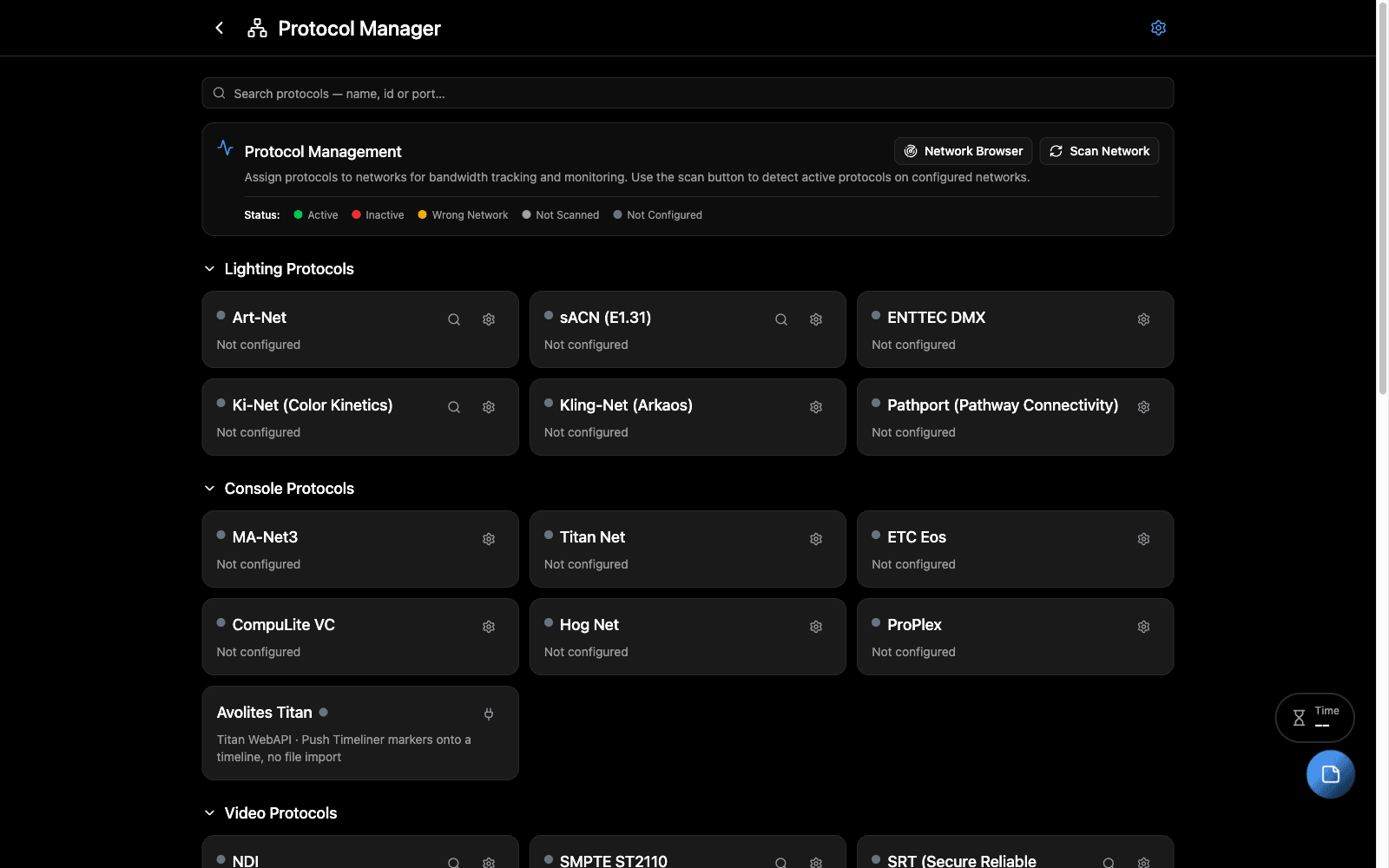
Overview
A show runs a dozen protocols across a handful of networks, and most of the questions that matter are about the mapping: is sACN on the lighting VLAN or the production one, is anything answering on it, did the media server end up on the right subnet.
Protocol Manager holds that mapping. Assign each protocol to a network, give it a port if it differs from the default, and scan to find out what is live. Those assignments feed bandwidth estimates elsewhere, so what you declare here turns up in the Net Bandwidth Calculator.
It is also where the console and manufacturer integrations live — the ones that talk to hardware rather than only watching traffic.
Finding a protocol
The search box filters by name, id or port. Typing 4809 finds CITP, which
is how people actually look these up — you remember the port, not the spelling.
Sections with nothing matching disappear, so what is left on screen is what
matched.
What it covers
| Section | Protocols |
|---|---|
| Lighting | Art-Net, sACN (E1.31), ENTTEC DMX, Ki-Net, Kling-Net, Pathport |
| Console | MA-Net3, Hog Net, ETCNet3, Avolites Titan |
| Video | NDI, ST 2110 and friends |
| Audio | Dante, AES67, AVB |
| Tracking | PSN, BlackTrax, Kinesys |
| Visualizers | CITP, Martin P3Vis |
| Laser | Pangolin LD, Lasergraph DSP |
| Other | OSC, RTP-MIDI |
| Manufacturers | Advatek, Robe |
Status, and what the colours mean
- Active — the scan found traffic on the assigned network.
- Inactive — assigned, scanned, nothing there.
- Wrong Network — found, but not on the network you assigned it to. Often the real answer to “why can’t the console see the nodes”.
- Not Scanned — assigned but never checked.
- Not Configured — no network assigned yet.
Scan Network checks the configured networks for each protocol’s traffic. Network Browser shows what is on the wire more generally.
Console and manufacturer integrations
These do more than watch — they talk to devices.
Avolites Titan
Under Console Protocols. Name a console, press Check connection, and it reads the desk’s own name back. Timeliner can then write its markers straight onto that console’s timelines over the network, and sending again updates them rather than duplicating.
See Avolites Titan.
The Titan WebAPI has no authentication of any kind. Prismatik never searches for a console on its own and never connects unasked — an address is entered and a button is pressed.
Advatek
PixLite Mk3 discovery over UDP, plus HTTP management: finds devices on the network and reads their configuration.
Robe
REAP, the Ethernet Access Portal on every Robe fixture with a network port. Scans from a seed fixture, then pushes DMX address, mode and RDM label straight from your Manifest paperwork.
CITP
Monitor CITP opens a live view of visualizer traffic — peers, fixture lists and streaming frames.
Common Workflows
Before a load-in. Assign every protocol you expect to the network it should run on. Anything left Not Configured is a decision nobody has made yet.
When something will not talk. Scan, then look for Wrong Network. A device answering on the wrong subnet is a different problem from one not answering at all, and the status tells you which you have.
Sizing a network. Assignments made here feed the Net Bandwidth Calculator, so declaring them is what makes those estimates real rather than theoretical.
Troubleshooting
Everything reads Not Scanned. Nothing has been checked yet — press Scan Network.
A protocol shows Inactive but the device is plainly working. Check the assigned network is the one it is actually on. That mismatch only shows as Wrong Network when the scan finds it somewhere else.
A manufacturer panel cannot reach a device. Those talk over HTTP to a specific address. Confirm your machine and the device are on the same subnet — assigning a protocol records intent, it does not route anything.
Related Tools
- Networks Manager — where networks are defined
- Avolites Titan — marker push
- RDM Browser — fixture-level discovery
Source
Component: ProtocolManager