Venue Mode
PRISMATIK’s second runtime personality — turns the app into a permanent installation manager. Astronomical scheduling, Art-Net output, process watchdog, multi-machine session mesh.
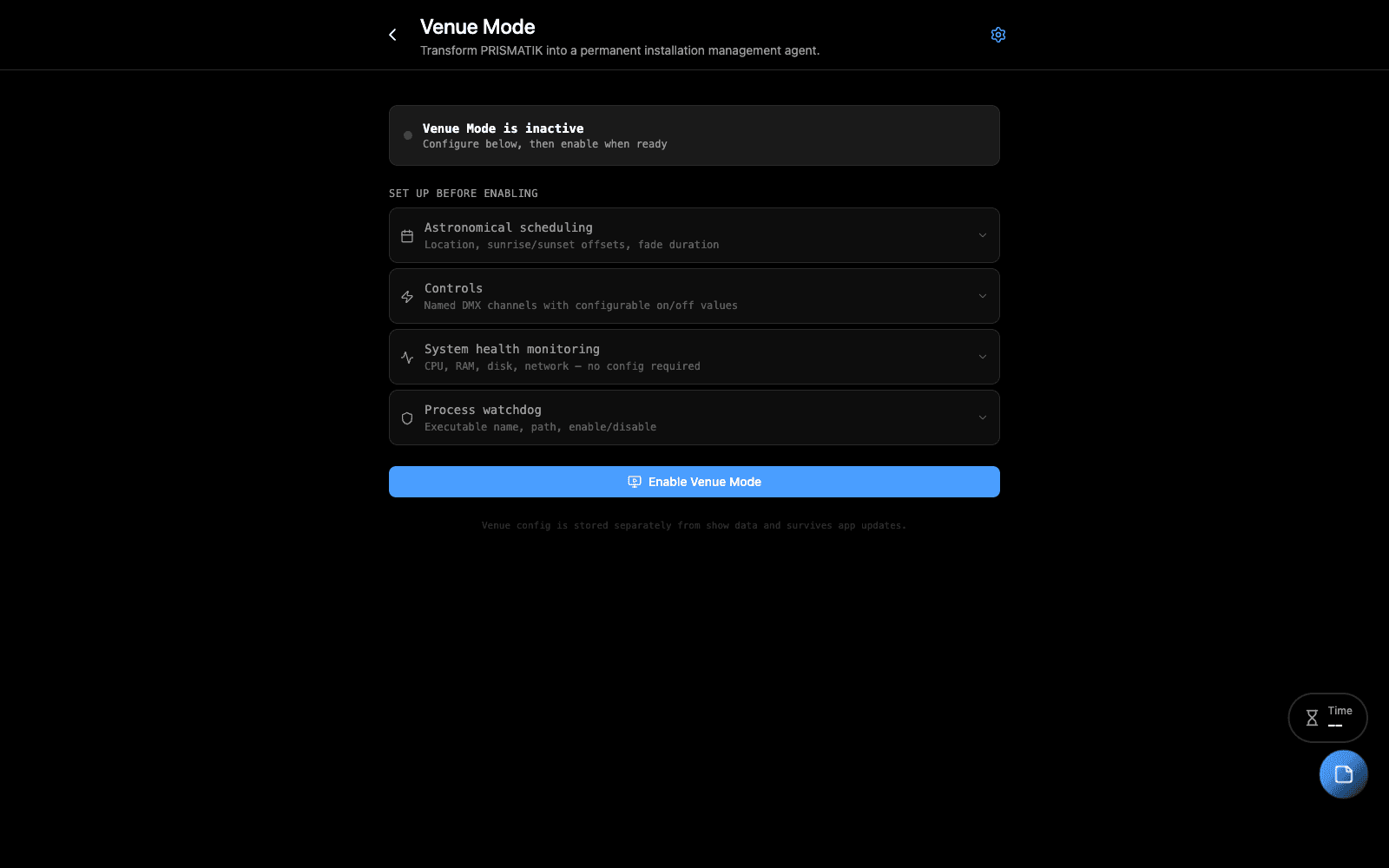
Overview
Venue Mode is the same PRISMATIK installer and binary — but when the venueMode flag is on, the app boots into a different shell. Instead of the show-planning dashboard, you get an operator-grade control surface designed for fixed installs: architectural lighting, hospitality, retail, corporate AV, theme parks, museums.
It solves the gap most production tools leave open: there’s no native lightweight scheduler for time-of-day control. Operators wire DMX → Ai/Hippo/Resolume → console, then have nothing to trigger day/night transitions except manual intervention or third-party BMS hacks.
Venue Mode handles:
- Astronomical scheduling (sunrise/sunset/twilight) with offsets — no time updates required
- Real-time health monitoring (CPU, RAM, disk, S.M.A.R.T., temps)
- Manual override controls for facility managers who must never touch the underlying console
- Native Art-Net / sACN / OSC / MIDI / UDP output
- Process watchdog with auto-restart escalation (restart → reboot)
- OS startup integration — PRISMATIK starts with the machine, launches the companion process
- Multi-machine session mesh (mDNS-discovered, hub/spoke roles)
- Cloud sync to
my.prismatik.run/dashboard/venuesfor remote monitoring
When to Use
Enable Venue Mode when:
- You’re commissioning a permanent installation (architectural facade, retail interior, museum exhibit, etc.)
- The site needs to come on/off at sunrise/sunset/scheduled times without anyone present
- A facility manager will operate it day-to-day but should never need to learn the media server
- You need a watchdog to keep a media server alive without IT intervention
- You’re managing multiple sites and want one cloud pane of glass
Keep using Desktop Mode (the default) for show authoring, tour design, planning, and any rehearsal/event work. Venue Mode is for deployment, not authoring — you author a show in Desktop Mode, then ship the show file to a Venue Mode machine.
Step-by-Step
Enabling Venue Mode for the first time
- From a Desktop Mode install, open Venue Mode Setup from the home screen.
- Click Enable Venue Mode. PRISMATIK writes
venueMode: trueto{userData}/venue-config.json. - Restart the app. On next launch, PRISMATIK boots into the Venue Mode shell.
- The shell opens to the Status tab — empty until you configure a schedule.
Configuring a venue
The Venue Mode shell has 5 tabs:
| Tab | Purpose |
|---|---|
| Status | Current operating state at a glance — mode badge (DAY/NIGHT/OVERRIDE), next scheduled trigger countdown, Art-Net output level, watchdog status |
| Today’s Schedule | Today’s full trigger list with calculated times. Day chart at the top shows the level curve. |
| Overrides | Force On / Force Off / Auto / Scrub To Time. Persisted across reboots. |
| System Health | CPU, GPU, RAM, disk, temps, network interfaces. Live updating. |
| Config | All venue settings — location, schedule rules, output protocol, process watchdog, startup, hold screen, network session. |
Setting up a schedule
- Config → Location → enter the venue’s GPS coordinates (or a city name — PRISMATIK geocodes it). Time zone auto-detected.
- Config → Schedule → add triggers. Each trigger is either:
- Astral — sunrise / sunset / civil twilight / nautical twilight / astronomical twilight, with optional offset (e.g. “sunset − 30 min”)
- Fixed time — wall-clock time (e.g. “23:00” for closing)
- Each trigger sets a target DMX level (a single channel, faded over a configurable duration with a configurable curve).
- Save. The Schedule Runner recalculates today’s triggers and applies the correct state for the current time-of-day immediately.
Wiring up the output
- Config → Output Protocol → choose Art-Net (most common for Ai/Hippo/Resolume), sACN, OSC, MIDI, or raw UDP.
- Configure: universe, channel, target IP/port, NIC if multi-homed.
- Continuous output Hz — typically 40Hz for Art-Net. Higher Hz uses more CPU but smoother fades on receivers that don’t interpolate.
- The FadeEngine ramps the channel between schedule states using the curve you pick (linear / ease-in / ease-out / S-curve).
Hold Screen (optional)
- Config → Hold Screen → enable.
- Set venue branding, optional logo, optional 4-digit PIN.
- PRISMATIK boots into a full-screen lockout view by default; only the venue name, current time, and a small unlock button are visible.
- Operators tap to unlock, enter PIN, and see the standard Venue Mode UI.
If you don’t need it (small unattended booth, no public-facing screen), disable it and PRISMATIK boots directly to the Venue Mode shell.
Process Watchdog
- Config → Process Watch → Add Process.
- Pick the executable (
Ai.exe,Resolume Arena.exe,Hippotizer.exe, etc.). - Set detection method (process name match / window title match / TCP port heartbeat).
- Set recovery escalation:
- On crash → restart process (after N seconds)
- If restart fails M times in T minutes → reboot the OS
- Watchdog runs continuously and surfaces status in the Status tab + System Health.
Multi-machine session (mesh)
- On the hub machine (the authoritative one — usually the FOH operator’s laptop or the primary server):
- Config → Network → Create Session → name the session, set a 4-digit PIN, set role to Hub.
- On each spoke machine (the others in the same venue):
- Open Venue Mode → Config → Network → Available Sessions lists nearby instances discovered via mDNS.
- Pick the session → enter the PIN → role = Spoke.
- Hub can now push schedule changes to all spokes in one action.
- Live Topology in the Flow Tool shows the live mesh.
Common Workflows
Authoring a show in Desktop Mode, deploying to a Venue Mode site
- On your studio laptop (Desktop Mode), build the schedule + output config + process watch settings.
- Save the show. PRISMATIK writes a
venueConfigsnapshot intoshow.json. - Copy the project folder to the venue machine.
- On the venue machine (Venue Mode enabled), open the show. PRISMATIK applies the
venueConfigimmediately — schedule runner recalculates today’s triggers, output snaps to the correct state. - Restart the venue machine. PRISMATIK boots into Venue Shell on its own.
Remote command via cloud dashboard
- Sign in to
my.prismatik.run/dashboard/venues. - Every Venue Mode instance with cloud sync enabled appears in the list with online/offline status.
- Click an instance → send a command: Reload, Restart, Override → Force On, Override → Force Off, Override → Auto, Scrub to time.
- Command queues in the cloud; the venue machine picks it up on its next heartbeat (typically within 30 seconds).
Force-on for a non-scheduled event
- Venue Mode → Overrides tab → Force ON → set fade duration → confirm.
- Override persists across reboots.
- Back to Auto when you want the schedule to resume.
Tips & Shortcuts
venueModeis per-machine — it lives in{userData}/venue-config.json, never inshow.json. Copying a show between machines doesn’t accidentally turn Venue Mode on.- Schedule snapshots travel with the show — but instance-specific things (session ID, override state, machine UUID) do not.
- System Health is your first stop on any “site is acting weird” — CPU/GPU spikes, RAM exhaustion, disk full, temps high. Most “Ai stopped responding” reports are really hardware health issues.
- Test the schedule by using Scrub To Time before going live — fast-forward to sunset to verify the fade looks right without waiting.
- Cloud sync is opt-in per instance. Disable it for fully-offline sites; enable it for sites where remote ops makes sense.
Troubleshooting
“Schedule isn’t firing at sunset.”
- Check Location — wrong GPS coords = wrong sunset time. The Status tab shows the calculated time for tonight’s triggers.
- Check the Schedule tab — confirm the trigger is enabled.
- Check Overrides — Force On / Force Off blocks the schedule by design.
“Process Watchdog can’t see my media server.”
- Process name match is case-sensitive on some platforms. Try the exact name from Task Manager / Activity Monitor.
- For media servers that fork (some spawn a child renderer process), pick the main process, not the child.
“Spoke machine doesn’t see the hub session.”
- mDNS doesn’t cross subnets without IGMP snooping. Confirm both machines are on the same LAN.
- Some corporate networks block mDNS — check with the venue IT team.
- See Live Topology for the same diagnosis flow.
“Override won’t clear after reboot.”
- Overrides are persisted by design. To clear, set to Auto explicitly (don’t expect a reboot to clear them).
“Cloud heartbeat says offline but the machine is running.”
- Cloud sync uses HTTPS to
dashboard.prismatik.run. Check the machine has outbound 443. Corporate firewalls sometimes block AWS API Gateway hosts.
Related Tools
- Venue Network — the session/peer panel for setting up the mesh.
- Schedule Manager — author schedules in Desktop Mode for export to a venue.
- Flow Tool — Live Topology — live network map across the venue mesh.
Source
Component: VenueModeSetup
Main process: src/main/venue/
Spec: docs/VENUE-MODE.md and docs/VENUE-MODE-IMPLEMENTATION-PLAN.md