RDM Fixture Browser
Find the RDM fixtures behind your Art-Net nodes, read and change their settings, and commission a whole universe against the Manifest.
Overview
RDM lets you talk back to fixtures down the same cable that carries their DMX: ask what they are, what address and mode they are in, how many lamp hours they have, and change those settings without a ladder.
The RDM Browser does that over Art-Net. It asks the RDM-capable Art-Net nodes on your network which fixtures they can see, then talks to each fixture through the node that reported it. It works on its own, with no show open.
With a show open, the Commission Wizard goes one step further: it walks a universe fixture by fixture and binds each one to its row in the Manifest, setting the mode and address the paperwork says.
When to Use
- Checking what is actually patched on a universe before you trust the plot.
- Re-addressing or changing the mode of a fixture you cannot reach.
- Finding a fixture: Identify makes it flash.
- Reading lamp hours, power cycles and sensors for a maintenance check.
- Commissioning a rig against the Manifest at load-in.
You need Art-Net nodes that pass RDM. A node that only outputs DMX will answer polls but report no fixtures.
Step-by-Step
Discovering fixtures
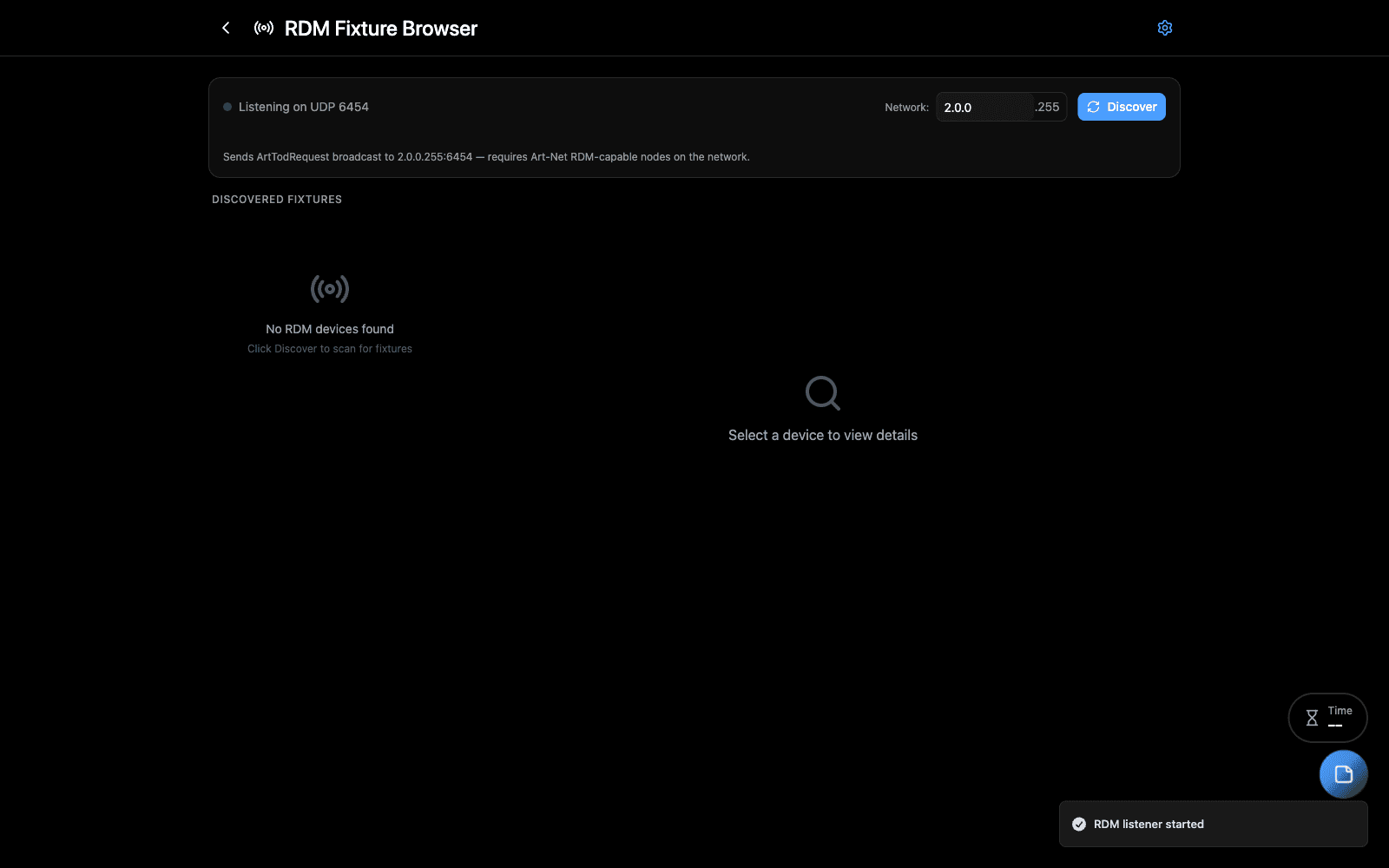
- Open RDM Fixture Browser. It starts listening on UDP 6454.
- Set Network to the first three parts of your Art-Net range —
2.0.0for the usual 2.x.x.x network. Discovery broadcasts to that range’s.255. - Press Discover. Fixtures appear in the list as the nodes report them.
- Select a fixture to see its details.
What each tab shows
| Tab | What it holds |
|---|---|
| Info | Manufacturer, model, label, software version, RDM UID, universe, DMX start address and footprint |
| Control | Identify, DMX start address, personality (mode), and a warm reset |
| Parameters | Every parameter the fixture supports — see below |
| Stats | Device hours, lamp hours, lamp strikes, power cycles |
| Sensors | Each sensor with its current value and range |
The Parameters tab
The Parameters tab lists everything the fixture says it supports, split into Standard and Manufacturer-specific. The manufacturer-specific ones are where vendors put settings such as pixel order, fan modes and display options. The fixture describes them itself, so they show up with their own names and ranges even though PRISMATIK has no profile for the fixture.
- Select a fixture and open Parameters. It reads every value; the counter shows progress.
- Change a value and press Apply on that row. PRISMATIK writes it and reads it back, so what you see is what the fixture now holds.
- Rows marked read-only can be looked at but not changed.
- Re-read fetches every value again.
Parameters that can switch a fixture off or change its output — power state, lamp on/off — ask for confirmation before they are sent. Reset, factory defaults, self-test and lock PIN are never offered here.
Commission Wizard
The wizard binds each physical fixture on a universe to its Manifest row and, optionally, sets its mode and start address from the Manifest.
It needs an open show with fixtures in the Manifest. Open it from Manifest → RDM, or from RDM Browser → Commission.
- Manifest universe — pick the universe to commission. The list shows how many Manifest rows each one has.
- Art-Net universe (0-based) — filled in as the Manifest universe minus one (Manifest universe 1 is Art-Net universe 0). Change it if your nodes are patched differently.
- Art-Net broadcast address —
2.255.255.255by default. Use your own network’s broadcast address if you are not on 2.x.x.x. - Press Discover. The table lists every fixture found, with its current address and footprint.
- Press Start identifying. The first fixture flashes.
- Find it on the rig and click the Manifest row on the right that is flashing. It is bound to that row. With Push mode + address on click on, the wizard also sets the fixture’s DMX mode and start address to the row’s and reads them back.
- The next fixture starts flashing. Back and Skip move through the list without binding.
- Review lists every fixture with its row, address now and target, mode target and result. Push anything left over from here, or Pick mode… where the wizard could not match the Manifest’s mode to one of the fixture’s.
Discovery order is not cable order. Fixtures come back sorted by their RDM ID, so the wizard cannot know which row is which — your click decides. When it has a guess from the fixture’s model and address, that row is highlighted, but check it against what is actually flashing.
A badge at the bottom keeps count: so many done, so many needing attention.
Common Workflows
Load-in commissioning. Build the Manifest first (or pull it from Capture, see Protocol Manager). Then run the wizard universe by universe with Push mode + address on click on. One person at the laptop, one eye on the rig.
Audit without changing anything. Run the wizard with Push mode + address on click off. You get the bindings and can compare addresses in Review before deciding what to push.
Fixing one fixture. No show needed: Discover, select it, change the address or mode on the Control tab.
Troubleshooting
No RDM devices found. Check the nodes have RDM turned on for that port, and that Network matches the range the nodes are on. If the Art-Net network panel is polling, its RDM column shows which nodes say they can do RDM.
A change is refused. The fixture said no, and the reason is shown — for example Write protected, or a value out of range. Some fixtures lock their settings from the front panel; unlock them there.
“Identify failed — is the node RDM-capable?” in the wizard. The node did not pass the request on. Check the node’s RDM setting for that output.
“Mode did not take”. The fixture accepted the request but reported a different mode afterwards. Set it in Review with Pick mode…, or on the fixture.
Commission is greyed out. Open a show first — the wizard commissions against that show’s Manifest.
The Commission Wizard and the Parameters tab have been tested with a limited range of RDM hardware so far, and RDM support varies between manufacturers, so results may differ during the open beta. Every change is read back from the fixture, so you can always see what was applied.
Related Tools
- Manifest — the rows the wizard binds to
- Protocol Manager — Art-Net network panel and node list
- DMX Universes
Source
Component: RdmBrowser
Spec: docs/RDM-MANIFEST-LINK.md